
Working with agents
Activity rooms
How an activity works — participants and roles, addressing models by name, background actors, approvals, verification and rollback.
An activity is a room for one piece of work. It binds an environment, a workspace directory, the models taking part and a tool policy, and it keeps the whole conversation — messages, tool calls, approvals and results.
Creating an activity
Pick an environment and a workspace directory — the last ten placements are one click away — and give the activity a name, or let it take the directory's. Synori prepares the room in the background: it starts a session VM, mounts the project and connects the tools. Sending unlocks as soon as the room is ready.
Participants and roles
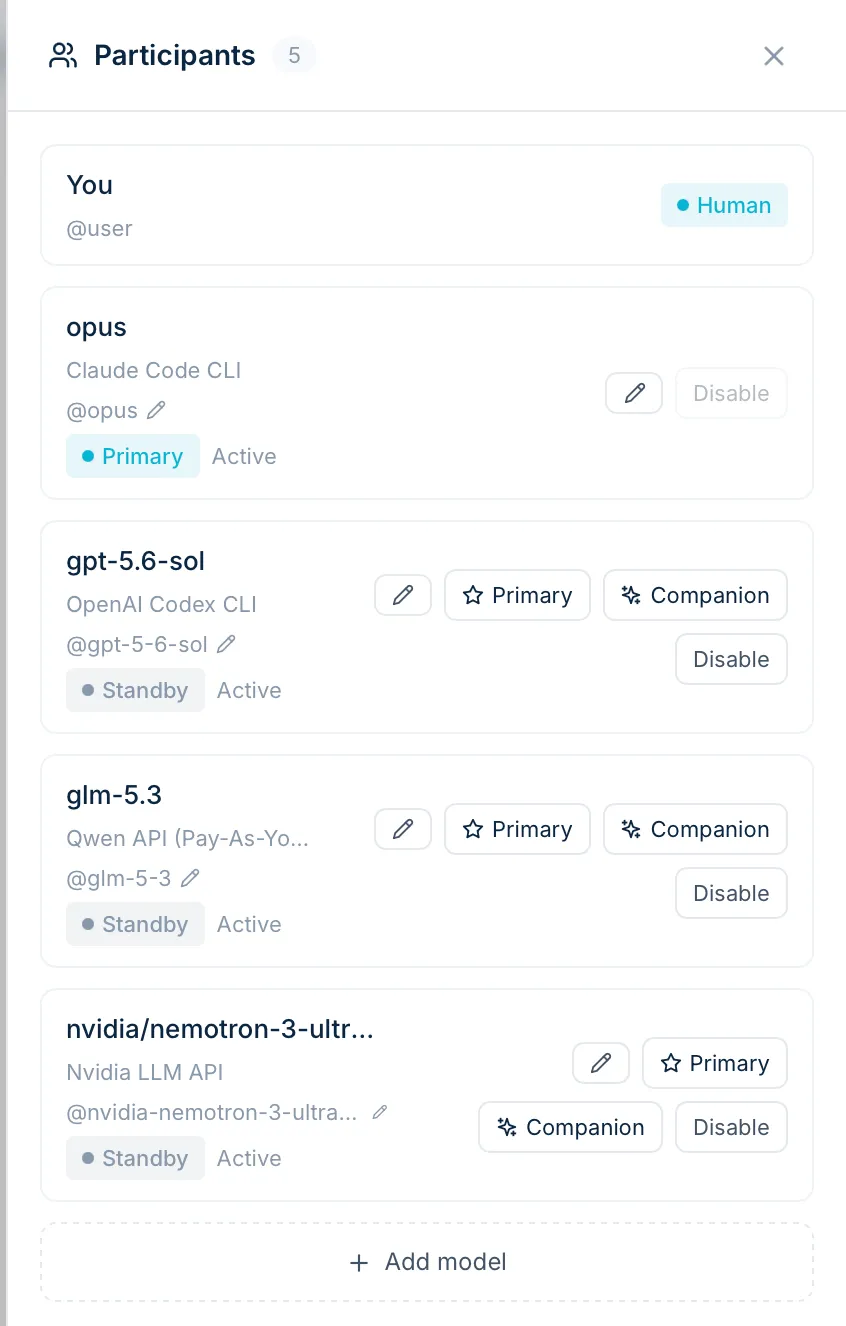
A room holds you and one or more models:
- Primary leads the room and answers every message that names nobody.
- Standby models join the conversation when you address them.
- Companion — one per room — works in the background, for example distilling durable facts from the conversation into the room's context.
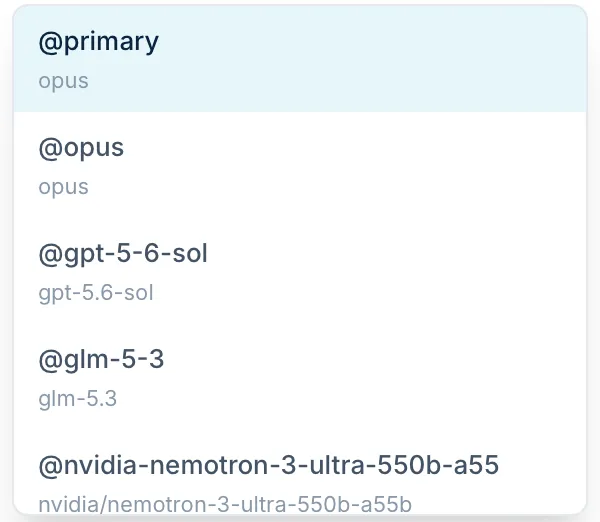
Every model gets a short name — Qwen3 Coder 30B becomes @qwen3-coder-30b — and you can rename it. Type @ in the composer to address a model. Name several models in one message and each answers in its own turn, in parallel: up to eight replies at once by default, sixteen at most. A model that is working on an answer can be stopped on its own while the others carry on.
Coding CLIs — Claude Code, Codex and Gemini CLI — join a room like any other model. They run in an agent VM of their own, apart from the session VM where your files, shell and builds live.
Writing a message
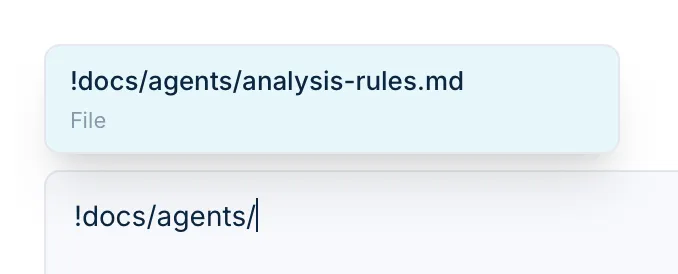
Enter sends a message and Shift+Enter starts a new line. The composer completes three kinds of tokens as you type them:
| Token | What it does |
|---|---|
@name | Addresses a participant; @primary and @companion reach whichever model holds that role |
$skill | Loads one of the room's skills into the message |
!path | Inserts the path of a file or folder from the session's workspace |
Background actors
A room can hand an errand to one of its participants and keep talking. The actor runs a full agentic turn with the same tools, workspace and approval policy, in parallel with the room's own turn. It has a mailbox you can write to, its approval requests show up in the room, and an unfinished run resumes after a restart. When it ends, it writes a report with its status, result and cost. Up to eight actors run at once by default.
Access modes and approvals
The room's tool policy decides what runs without asking:
| Mode | What runs without asking |
|---|---|
| Plan | Reading and read-only git. File changes are blocked — the workspace is read-only down to the file system — and everything else asks. |
| Auto-edit | File edits and workspace tools. Shell commands and git still ask. |
| Unrestricted | Everything. |
On top of the mode you can add rules — command patterns and path globs with allow, ask or deny — and a list of dot-files the sandbox may read or write. When an action needs your decision, the room shows an approval card: Allow, Allow always, which adds a rule to the policy, or Deny. A badge on the room counts the calls the policy blocked.
In plan mode the assistant drafts a step-by-step plan. Approve it to switch to execution, or reject it.
Verify, review and rollback
- Verify runs your lint, typecheck, build and test commands — a language preset or your own — and reports the result in the room. With automatic rollback on, a failed verify returns the workspace to the last green checkpoint.
- Review is an independent pass over the changes since the last approval. Findings are graded from critical to nit, and one button sends them back to the primary. Assign a different model as the reviewer for a truly independent opinion; review can also run automatically after a green verify.
- Rollback returns the workspace to the snapshot taken at the boundary of any turn.
Context and memory
The Context tab shows what the model sees besides the conversation: notes, pinned documents, digests, project memory, the verify state and the files changed so far. Every item can be previewed, included or excluded. Long-term memory keeps facts across sessions. Transcript compaction — off by default — summarises older history when a conversation outgrows the model's context window, and the composer shows the tokens used so far next to an estimate of the room's size.
The room's tabs
| Tab | What it shows |
|---|---|
| Room | The conversation, approval cards, actor runs and their reports. |
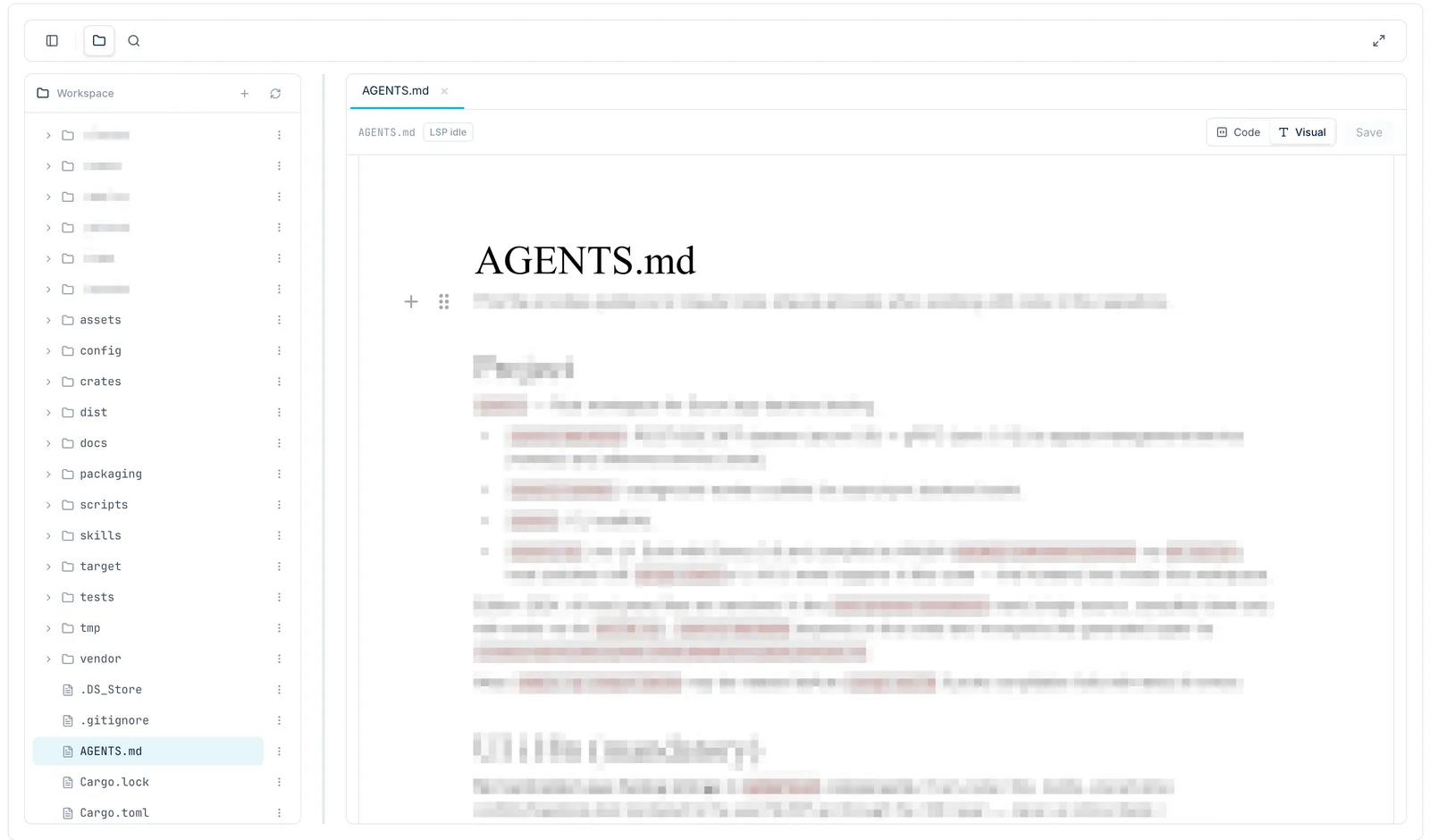
| Files | The workspace tree with an editor: new files and folders, rename, move, cut, copy and paste. |
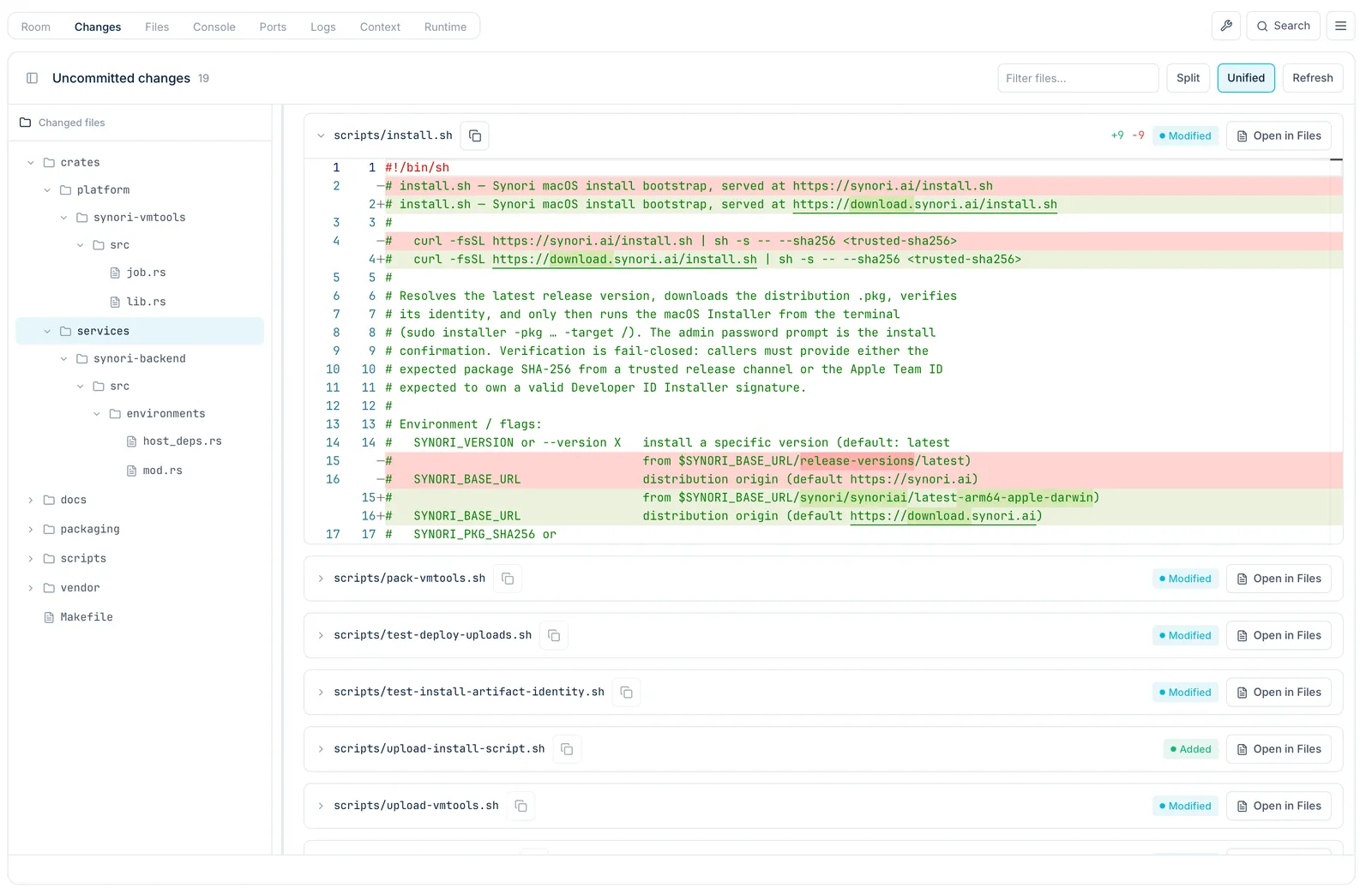
| Changes | Uncommitted git changes as a split or unified diff. |
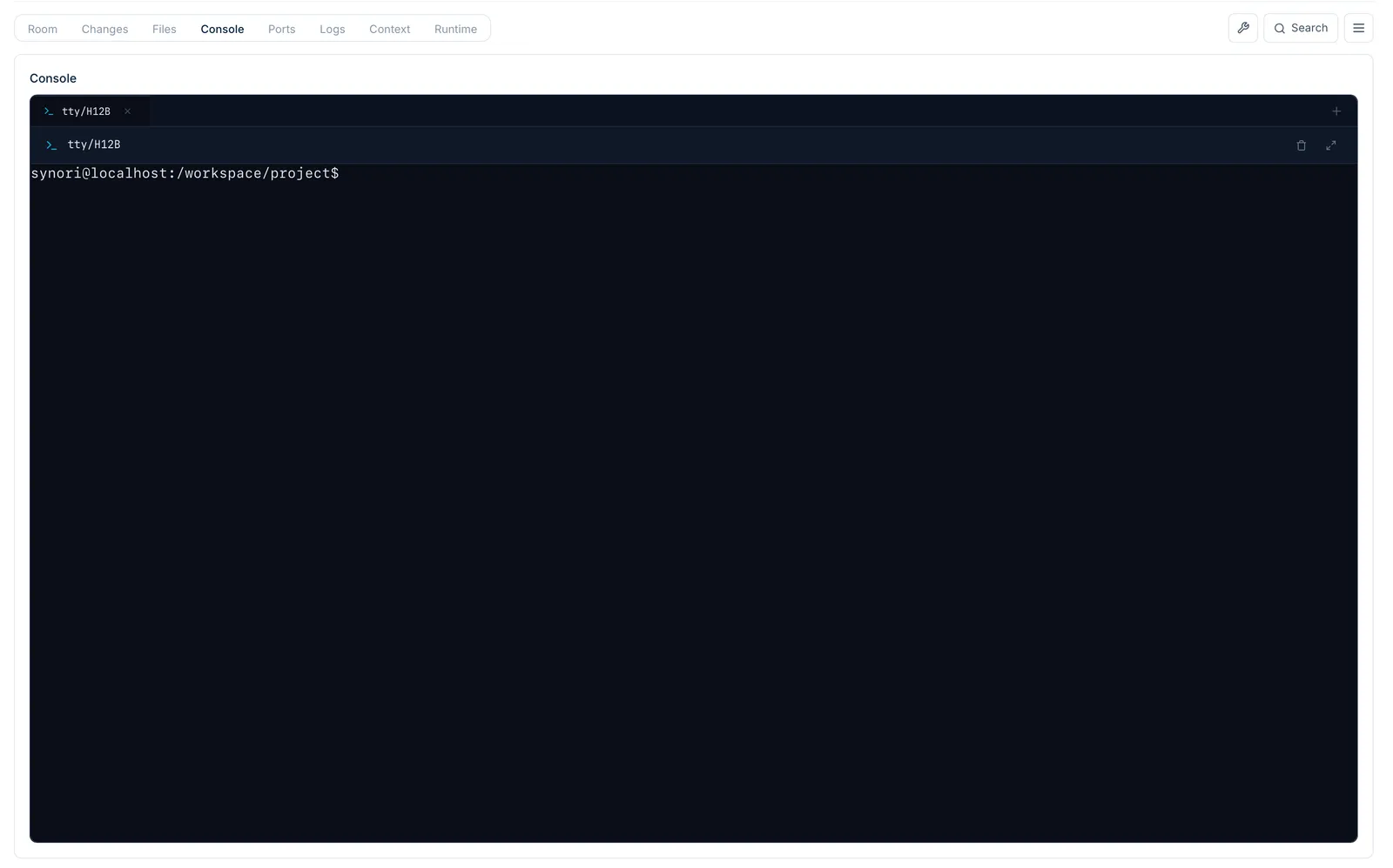
| Console | A terminal in the session VM. |
| Logs | Tool calls, errors, token usage, lifecycle and review events. |
| Runtime | The session, environment and runner; extra mounts, recovery, suspend and wake. |
| Ports | Dev servers started in the session and their forwarded ports. |
| Context | Context items and long-term memory. |
The whole history of a room is searchable and can be exported as Markdown or JSON. Reset archives an activity and opens a fresh one on the same workspace with the same participants; Archive keeps the transcript read-only until you restore it.