
Get started
Install and update
System requirements, the macFUSE dependency, the one-line installer, what it puts on your Mac, updates and removal.
Requirements
- macOS 14 (Sonoma) or later
- A Mac with Apple Silicon (M1 or newer)
- 8 GB of memory at least; 16 GB or more to run local models
- macFUSE — required: Synori.AI does not work without it
- A network connection for your Synori account and for cloud models
Intel Macs, Windows and Linux are not supported yet — join the waitlist to hear when they are.
Install macFUSE
Every session in Synori.AI runs in a micro-VM, and the micro-VMs mount their workspaces through macFUSE. The Synori.AI installer does not bring macFUSE with it, and without macFUSE no session can start. Install it first — its system extension needs a restart before it works.
Pick one of three ways.
The macFUSE installer
This is the way the macFUSE developers recommend. Download the latest release from macfuse.github.io or from the macFUSE releases on GitHub, open the disk image and run the installer in it.
Homebrew
brew install --cask macfuseMacPorts
sudo port install macfuse +fs_link
sudo mkdir -p /usr/local/lib
sudo ln -sf /opt/local/lib/libfuse.2.dylib \
  /usr/local/lib/libfuse.2.dylib
MacPorts installs macFUSE under /opt/local, while Synori.AI looks for it where the macFUSE installer puts it: /Library/Filesystems/macfuse.fs and /usr/local/lib/libfuse.2.dylib. The +fs_link variant links the first path, and the last two commands link the second.
Allow the system extension
macFUSE runs a kernel extension, and macOS loads it only after you approve it. The first time macFUSE tries — during its installation or when the first session starts — macOS reports that a system extension was blocked:
- If this Mac has never allowed a kernel extension, open System Settings → Privacy & Security, choose Enable System Extensions… and then Shut Down.
- Press and hold the power button until the Mac starts Startup Security Utility in Recovery. Select the macOS volume, choose Security Policy…, select Reduced Security, turn on Allow user management of kernel extensions from identified developers and restart.
- Open System Settings → Privacy & Security again, choose Allow for the system software of Benjamin Fleischer — the developer of macFUSE — and restart the Mac.
The first two steps are needed once per Mac; after a macFUSE update macOS may ask for the third one again. The macFUSE Getting Started guide shows every screen of these steps and helps when the Allow button does not appear.
To check the installation, both paths have to exist:
ls -d /Library/Filesystems/macfuse.fs /usr/local/lib/libfuse.2.dylibOnce Synori.AI is installed, the page of an environment checks the same: under Host dependencies, macFUSE library (libfuse) and macFUSE file system support read OK.
Install Synori.AI
Run the installer in Terminal:
curl -fsSL https://download.synori.ai/install.sh | shThe script downloads the latest package and runs the macOS installer; your administrator password confirms the installation.
What gets installed
- SynoriAI.app in
/Applications— the desktop app with its local backend, thesynoricommand-line tool, the runner and the launcher. - The micro-VM runtime and the sandbox image that sessions boot from, inside the same app bundle.
- A link to the
synoricommand in/usr/local/bin. - A login agent that keeps the backend running.
Compilers and SDKs are not part of the package. They come as VM tools archives that you download in the app after installation — How to start walks through it.
First launch
Open Synori.AI from Applications and sign in to your Synori account. The backend keeps running in the background, so work in a room goes on while the window is closed. Before the first room, set up an environment and its VM tools as How to start describes.
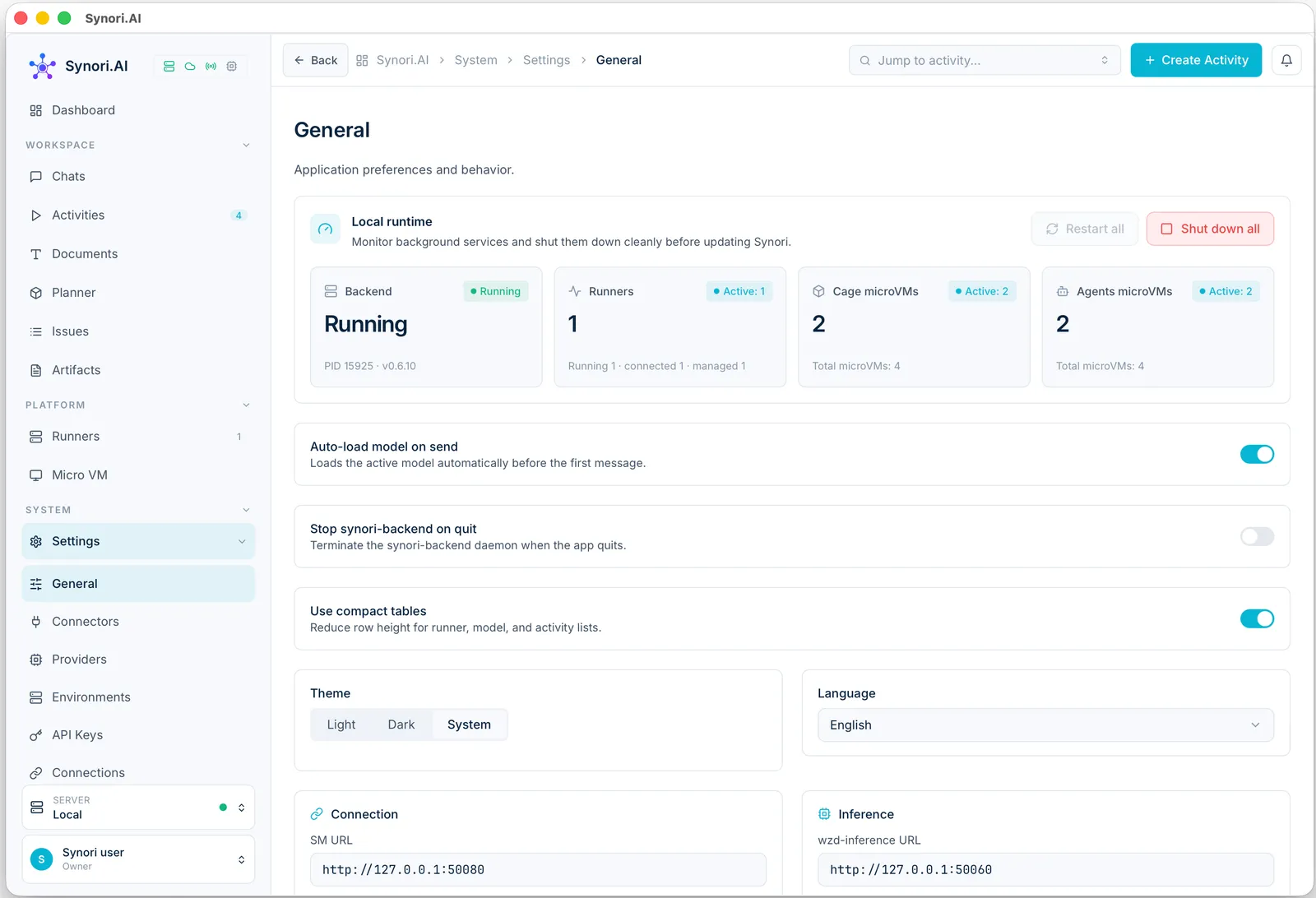
Settings → General shows this local runtime — the backend, its runners and the cage and agent micro-VMs — with buttons to restart all of it or shut it down cleanly before an update. A switch below stops the backend whenever you quit the app.
Updates
Open Settings → About and choose Check for updates. Synori downloads the new version, verifies its checksum and opens the macOS installer to finish the update.
Uninstall
curl -fsSL https://download.synori.ai/install.sh | sh -s -- --uninstallThe script stops Synori and removes the app, the command-line link and the package receipts. Your data and settings stay on the Mac, the downloaded VM tools archives among them. macFUSE stays installed as well — remove it separately if no other app needs it.