
Get started
How to start
The one-time setup before the first room — an environment, the VM tools archives with the coding agents and toolchains, and unpacking them.
Every session in Synori.AI runs in a micro-VM of its own, the session VM. The app package carries the base system of that VM. Compilers and SDKs, and the current builds of the coding-agent CLIs, come as VM tools archives: you download them in the app once and unpack them, and from then on every session VM has them. Until then agents have no compiler to build your project with.
The setup takes three steps, all on the page of an environment:
- Create an environment.
- Download the VM tools archives —
agentsfirst, thentoolchain, then any extra toolchain your projects need. - Unpack the archives.
Before you start, install macFUSE and allow its system extension as Install and update describes: without it no session VM can mount its workspace.
Create an environment
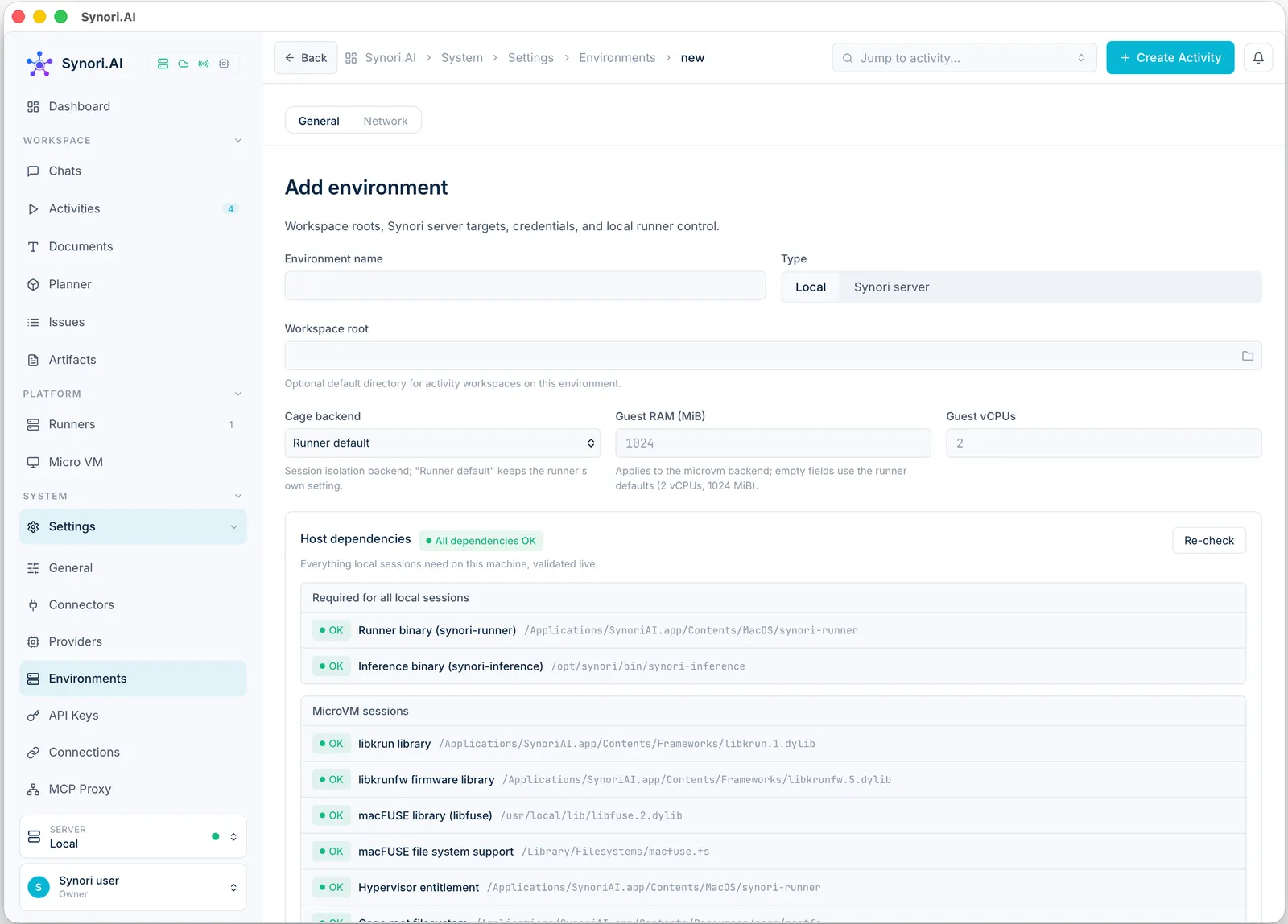
An environment says where sessions run and how they are isolated. Open Settings → Environments and choose Add environment:
- Environment name — any name, for example
Local. - Type — Local runs sessions on this Mac, Synori server on a remote Synori server. This page follows a local environment.
- Workspace root — optional: the directory where new activities keep their workspaces by default.
- Cage backend —
microvmisolates every session in a micro-VM; Runner default keeps the runner's own setting. - Guest RAM (MiB) and Guest vCPUs — the size of each session VM; empty fields use the runner defaults shown under them. Give large builds more memory: a big Rust workspace can run out of it in a small VM.
Choose Save environment. Its page has the tabs General, Credentials, Groups and Network; the steps below all happen on General.
Download the VM tools archives
The VM tools archives section of the page lists the layers you can download, with the Local version, the Available version and the Status of each; Refresh list reloads it. Download fetches an archive, verifies its SHA-256 and saves it to ~/.synori/vmtools/ — the status then reads SHA-256 verified and saved. Download the layers in this order.
agents
The file system layer with the vendored coding-agent CLIs — Claude Code, Codex and Gemini CLI — and the Node.js runtime they run on. Download it first. The app ships a copy of this layer too, but the CLIs change often, and a downloaded agents archive takes precedence over the built-in copy, so agents get current CLIs without a reinstall of Synori.AI.
toolchain
The main toolchain — what agents need to build, test and lint the most common projects:
- C and C++:
gcc,g++,clang,makeandcmake - Rust:
rustcandcargowithrustfmt,clippyandrust-analyzer - JavaScript and TypeScript: Node.js with
npm,npxandtsc, and Deno git,protocandrg- language servers for the editor: TypeScript, Python (Pyright), PHP and Perl
It is the largest archive, so it takes the longest to download and to unpack.
Extra toolchains
Other languages come as layers of their own, named toolchain-<language>; download only those your projects need. toolchain-go adds Go with gofmt and gopls. Go code that uses cgo compiles its C parts with the compiler from the main toolchain layer, so keep that one as well.
Unpack the archives
A downloaded archive is not used until it is unpacked. The Host dependencies panel above the archives checks, live, what sessions need on this Mac, and its MicroVM sessions group has a row for every layer: vmtools coding-agents layer, vmtools toolchain layer, and one row per extra toolchain, such as vmtools toolchain layer: go. A layer that is downloaded but not unpacked shows Warning and, at the end of its row, the Unpack now button with a package icon.
- Choose Unpack now on each of these rows.
- The unpack runs in the background and takes a few minutes; meanwhile the row shows Unpacking… N%.
- The layer is ready when its row reads OK. Re-check runs all the checks again.
Unpacked layers are kept in ~/.synori/run/vmtools/. The runner of the environment picks them up when it starts: if it was already running, restart it with Stop and Start in the Runner panel of the same page. Session VMs that are already running keep the layers they started with.
When the panel says All dependencies OK, the environment is ready: start an activity on it and add participants, as Activity rooms describes. Every other row of the panel — the runner, the micro-VM libraries, macFUSE, the base system of the VM — carries its own hint whenever it is not OK.
How layers reach the session VM
Each unpacked layer is mounted read-only into every new session VM, on top of its base system, Debian 13 with glibc:
| Layer | In the session VM |
|---|---|
agents | /opt/agents; its bin directory comes first on PATH |
toolchain | /opt/toolchain, laid over /usr — the tools sit at their usual Debian paths, such as /usr/bin/gcc and /usr/local/bin/cargo |
toolchain-go | /opt/toolchains/go, with its bin directories on PATH |
The tools are on PATH in the agents' shell, in the session console and for the editor's language servers alike — there is nothing to configure. That the layers are read-only has three consequences:
apt-get install,npm install -gandrustup toolchain installfail by design. Install the dependencies of a project with its own tools instead —npm install,cargo build,go mod download.- Build output goes to
/tmp, because the workspace allows neither hard links norchmod. The main toolchain already setsCARGO_TARGET_DIR=/tmp/cargo-targetfor Rust. - A new version of a compiler comes with a new archive, not with an install inside the VM.
The toolchain layers also carry a skill that teaches agents these rules. It appears among the skills of a room under the name of its layer — toolchain or toolchain-go.
The session VM has no network by default, so package managers cannot download anything yet. Allow the registries your projects use on the environment's Network tab — Security and data flow explains the options.
Updates
When a newer archive comes out, the VM tools archives list shows Update available for its layer, with an Update button. After the download the layer's row in Host dependencies turns to a warning — The unpacked layer was built from a different archive — and Unpack now rebuilds the layer from the new archive.
Troubleshooting
| Message | What to do |
|---|---|
| Could not reach the download server | Check the connection and download again. |
| Archive verification failed | The SHA-256 did not match: download the archive again. |
| Could not save the archive | Check the free disk space and the permissions of ~/.synori/vmtools/. |
| The archive exists but this app cannot read it | Fix the permissions of the file in ~/.synori/vmtools/. |
| This layer was built for a different guest system | The archive is older than this version of Synori.AI: update it, then unpack it again. |
| The last unpack failed | The reason follows the message; Unpack now tries again. |